



"There has been a critical error on this website" means that some PHP code on your site stopped with a fatal error, and WordPress showed this message instead of a blank page. In most cases the cause is a plugin, the theme or a change of PHP version, and it can be fixed without losing anything. The fastest route is to read the actual error before touching any plugin.
What the message means
WordPress runs on PHP. When a plugin, the theme or WordPress itself hits an error PHP cannot recover from, the page stops loading. WordPress catches it and shows this generic message, so visitors do not see a broken page full of code. The details stay hidden, in an email and in the error logs.
It often shows up right after:
- A plugin or theme update, including automatic ones that ran overnight.
- Your host moving the site to a newer PHP version.
- Installing a new plugin that clashes with one you already had.
- An update that stopped halfway and left files incomplete.
- The site running out of the memory PHP is allowed to use.
1. Check the admin email first
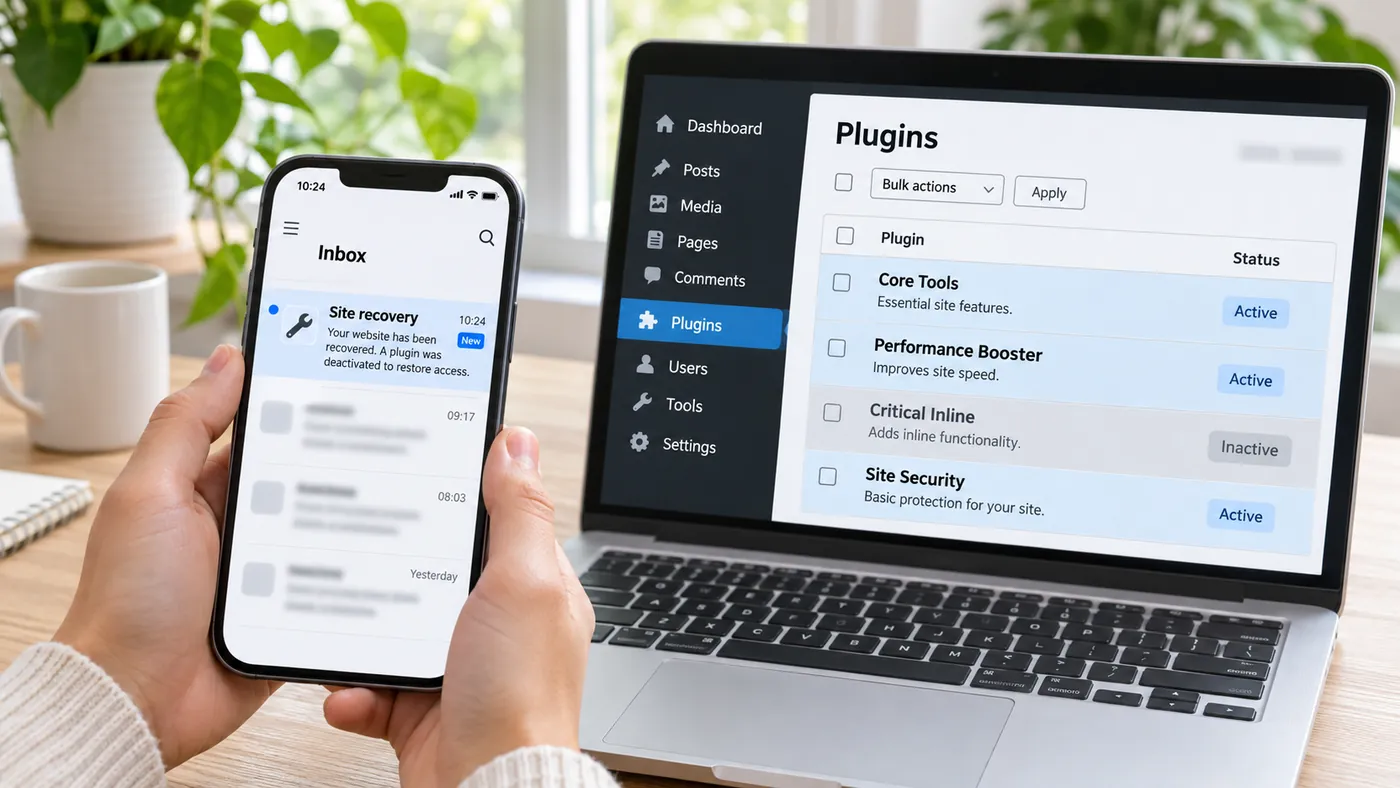
When this happens, WordPress emails the site's admin address with the subject "Your Site is Experiencing a Technical Issue". That email usually names the plugin or theme that failed and includes a recovery mode link. The link lets you log into the dashboard with the faulty plugin paused, so you can deactivate it, update it or replace it.
If the email never arrived, check spam, and check which address is set as the admin email. On many sites it belongs to someone who left years ago.
2. Turn on the debug log
If there is no email, ask WordPress to write the error to a file. Open wp-config.php with your host's file manager or SFTP and add these lines above the one that says "That's all, stop editing":
define( 'WP_DEBUG', true );
define( 'WP_DEBUG_LOG', true );
define( 'WP_DEBUG_DISPLAY', false );
Reload the broken page and open wp-content/debug.log. Look for the last line that starts with "PHP Fatal error": it includes a file path, and the folder in that path tells you which plugin or theme it is. When you are done, set WP_DEBUG back to false. Many hosts also keep their own PHP error log in the control panel.

3. Deactivate the plugin that causes it
If you cannot get into the dashboard, deactivate the plugin from the files. In wp-content/plugins/, rename the plugin's folder, for example from plugin-name to plugin-name-off. WordPress will deactivate it on the next load.
If you do not know which one it is, rename the whole plugins folder. If the site comes back, rename it back and reactivate the plugins one by one from the dashboard, checking the site after each. The one that brings the error back is the culprit.
4. Rule out the theme
If the log points to wp-content/themes/, rename the active theme's folder the same way. WordPress will switch to a default theme such as Twenty Twenty-Five if one is installed. The design will look different, but if the site loads, you know where the problem is.
5. Check the PHP version and memory
- PHP version: if your host upgraded PHP and an old plugin does not support it, set the previous version back from the hosting panel while you update or replace the plugin. Treat it as a temporary fix, because old PHP versions stop getting security updates.
- Memory: if the log says "Allowed memory size exhausted", raise the limit by adding
define( 'WP_MEMORY_LIMIT', '256M' );towp-config.php. If it keeps happening, something is using far more memory than it should: the debug log will usually show which plugin.
6. When nothing works, restore a backup
If you cannot find the cause, restore the most recent backup from before the error and look for the cause on a staging copy, without visitors watching. Keep in mind that anything that changed after that backup, such as orders, form entries or new posts, can be lost, so check before you restore a shop.
How to keep it from happening again
Most of the critical errors we fix come from updates that nobody tested: a page builder that updated itself at night, or a host that changed the PHP version without warning. Test big updates on a staging copy first, keep backups you know how to restore, and make sure the admin email reaches a person who reads it. We explain the full routine in how to update WordPress without breaking your site.


